← Back to Projects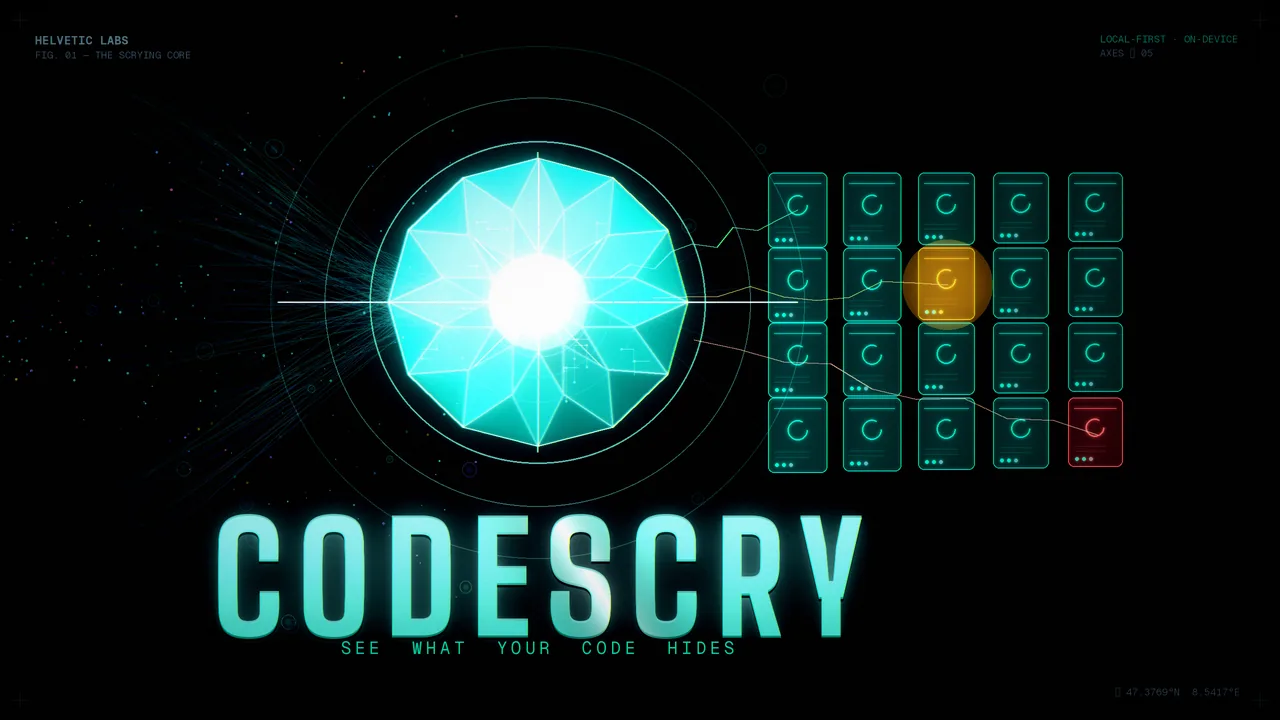
Codescry
View Project →About
Codescry is a desktop app that audits a whole folder of side projects at once. You point it at the folder, it detects each project, and a language model running on your own computer grades every one. There is no account, no cloud and no telemetry in the app. Your code stays on your machine.
Each project is checked on five axes: Missing pieces, Feature gaps, Outdated tech, UI quality and Bloat. Findings are ranked critical, suggested or optional, and each one comes with an explanation and a concrete recommendation.
- A health score per project (0 to 100), tracked across scans
- A portfolio report with a tech-debt heatmap and a ranked to-do list across all projects
- Resolve or snooze findings; a resolved finding reopens if the problem comes back
- Detects Node, Python, Rust, .NET, Godot, Go and Java projects; anything else is scanned as generic
- An idea generator: fill in an About Me profile and get personal project ideas tagged with effort and impact
- Reports and the priority list export as Markdown or JSON
- Works offline; the only network use (package version lookups and an update check) stops with one switch
Codescry is free and MIT-licensed, with builds for Windows, macOS and Linux. It needs Ollama installed as its local model engine.
Usage Guide
- Check your computer: at least 8 GB of RAM (16 GB recommended) and about 4 GB of free disk space. A GPU is optional; Codescry also runs on the CPU, just slower.
- Install Ollama and leave it running. Codescry uses it as the local model engine. You don't need to download a model by hand.
- On www.codescry.app, go to Download and pick your system:
.msifor Windows 10/11,.dmgfor macOS,.AppImageor.debfor Linux. If you like, check the file against the published SHA256SUMS. - Install and open Codescry. The Windows build is not code-signed yet, so SmartScreen may flag the installer as an unrecognised app.
- Follow the four onboarding steps:
- Welcome: click Choose projects folder.
- Folder: pick the folder that contains your projects. Each top-level subfolder counts as one project. If your projects sit one level deeper, set Scan depth to 2 levels.
- Model: if the model isn't installed yet, click Download model. The default is
gemma3:4b(about 3.3 GB). - Axes: keep all five axes on, or turn some off.
- On the dashboard, click Run first scan. The first full run takes a while, because the model works through every project and axis on your computer. You can pause, cancel or skip a project at any time.
- Open a project to read its health score and findings, or open the Portfolio Report for the heatmap and the priority list. For the UI axis, attach a screenshot of the app.
- Optional: fill in About Me (at least your skills and one domain) and click Generate ideas to get nine personal project ideas.