← Back to Projects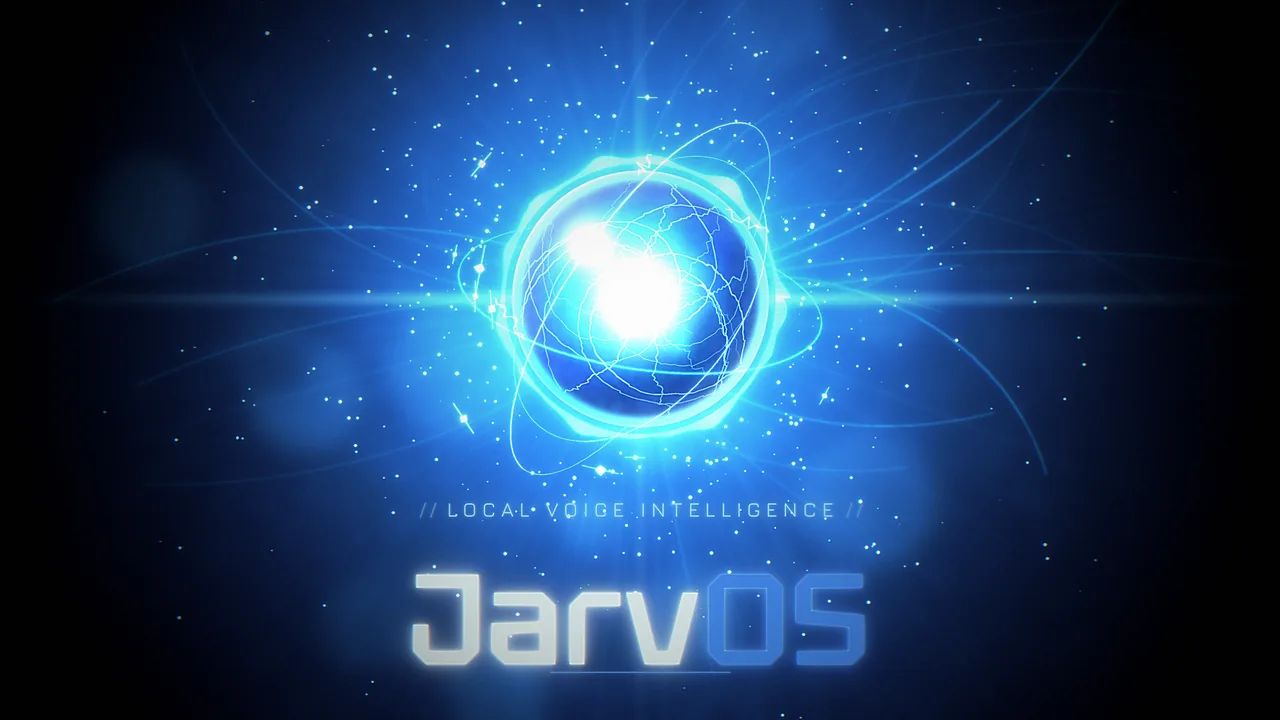
JarvOS
View Project →About
JarvOS is a desktop voice assistant whose whole interface is a single glowing orb. You summon it with a hotkey or a wake word and say what you want. A language model running on your own computer works out what you mean and does it: it opens an app, a web page or a script you have registered, and answers you out loud.
Everything runs on your machine. The model runs in Ollama on localhost, and JarvOS has no account, no telemetry and no chat history. The only transcript you ever see is a short echo of your command, and it clears when the orb rests.
- Nine orb states (Idle, Wake, Listening, Thinking, Executing, Speaking, Success, Error, Awaiting), each with its own color, motion and caption, so you can read it at a glance
- Skills: you decide which apps, links and scripts JarvOS may run. Strict mode rejects anything else; prompt mode asks you to confirm by voice
- Global hotkey
Ctrl+Shift+J, optional push-to-talk, and an optional wake word such as "jarvis" - Press Esc or click away to cancel at any moment
- Lives in the system tray and respects reduced-motion settings
JarvOS is free and MIT-licensed. Windows is the main platform; the macOS and Linux downloads are marked as preview builds.
Usage Guide
- Install Ollama and pull a model, for example by running
ollama pull llama3.2in a terminal. Keep Ollama running (the Windows app does this for you). - On www.jarvos.app, go to Download and open the Releases page for your system:
.msior.exefor Windows 10/11 (64-bit),.dmgfor macOS,.AppImageor.debfor Linux. Windows is the main platform; the other two are previews. - Install and start JarvOS. It runs in the system tray. The Windows build is not code-signed yet, so SmartScreen may warn you on first launch.
- Work through the three Get started steps: pick your Ollama model, allow microphone access and test it, then enable a starter skill (Notepad, Calculator and File Explorer are ready to go).
- Press
Ctrl+Shift+Jto summon the orb and say "open notepad". If no speech engine is available on your machine, the orb shows a text field and you can type the command instead. - Add your own apps, links and scripts under Settings → Skills. Leave Permissions & Safety on Strict and Registered only unless you have a reason to loosen them.
- Optional: choose a wake word under Settings → Activation ("jarvis", "hey jarvis", "alexa", "hey mycroft" or "hey rhasspy"). The wake word needs its model files installed; the Activation page tells you if anything is missing. The hotkey always works.