← Back to Projects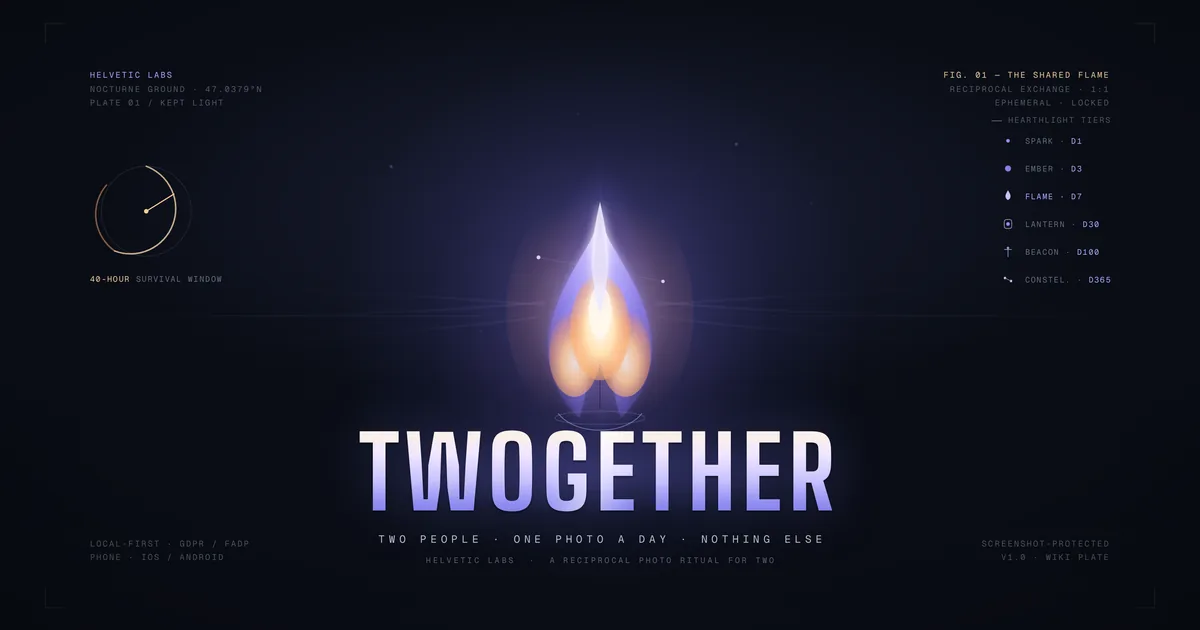
Twogether
View Project →About
Twogether is a private photo ritual for two people. You send one photo, the other person sends one back, and a shared streak called the Hearthlight stays lit. There is no feed and no audience. It runs in the browser on your phone and is for people aged 16 and over.
Photos are ephemeral. Once a photo has been viewed, the image file is deleted from storage. The one exception is a photo you report, which is kept so it can be reviewed.
- Disappearing photos: the sender sets how many seconds a photo can be viewed. Photos nobody opens expire after 7 days.
- Screenshot alerts: no app can block screenshots on every device, so Twogether tells the sender when it detects one. It also sets the streak back by one day.
- The Hearthlight streak: send, view and reply within 40 hours to move it forward. Freeze tokens cover a missed window, and a broken streak can be rekindled within 7 days.
- Keepsakes: milestones from Spark (day 1) to Constellation (day 365) open a shared album, cards you can share (they contain no photos) and badges.
- A small circle: up to 15 people, each with their own chat and streak.
- Locked by default: a 6-digit PIN app lock, optional passkey unlock, two-factor sign-in, and notifications that never show a preview.
Usage Guide
- Open www.twogether.chat on your phone. Twogether is phone-only, so a computer shows a "switch to your phone" screen instead.
- Tap Create an account and sign up with your email and a password, or continue with Google, Apple or HelveticLabs when those buttons are shown. Confirm your email if you are asked to.
- Set up your profile: enter your date of birth (16 or older), choose a display name and a picture, and pick a 6-digit PIN for the app lock.
- Allow the camera, which the app needs, and turn on notifications if you want them. Read the four short notes on how photos vanish and tap I understand.
- Invite one person you trust. Create an invite link now, or later tap the add-people icon at the top of your Circle screen to share a link, show a QR code or invite by email. Once they accept, they appear in your circle.
- Tap the camera button in the middle of the tab bar, take a photo, add a caption if you like, and send it. You can save your own photo before sending.
- When a photo arrives, open it from your circle. You get a few seconds to look at it. Reply with a photo of your own to close the loop and keep the Hearthlight lit.
- Tap the flame at the top of a chat to see the streak, freeze tokens and milestones. From there, Open keepsakes shows your album, cards and badges.
- Open the You tab for settings: profile picture, app lock and passkey, two-factor authentication, auto-lock, notification types and quiet hours, data download, account deletion, help and support. Twogether has no paid plans, so there is no billing page.